
This page contains affiliate links. If you make a purchase through one, we may earn a commission at no extra cost to you.
Every password manager claims to be secure. The differences that actually matter are narrower than the marketing suggests, and here’s what to actually check.
What Actually Matters
- Zero-knowledge architecture — the company itself shouldn’t be able to read your stored passwords, even if compelled to.
- Autofill accuracy — a password manager you have to fight with on half the login forms you visit won’t get used consistently, which defeats the purpose.
- Cross-platform support — it needs to work the same on your phone as your laptop, or you’ll end up with gaps.
- Two-factor support for the vault itself, not just the accounts stored inside it.
- Price that doesn’t punish a family plan — multi-user pricing varies wildly between providers.
RoboForm has been solving specifically the form-filling accuracy problem since 1999, longer than most competitors have existed, and it shows in how reliably it recognizes unusual login forms other managers stumble on. It also happens to check the family-pricing box well: a single Family plan covers up to 5 people at a real per-person discount compared to buying separate individual plans.
Tier by Tier: What You Actually Get at Each Price Point
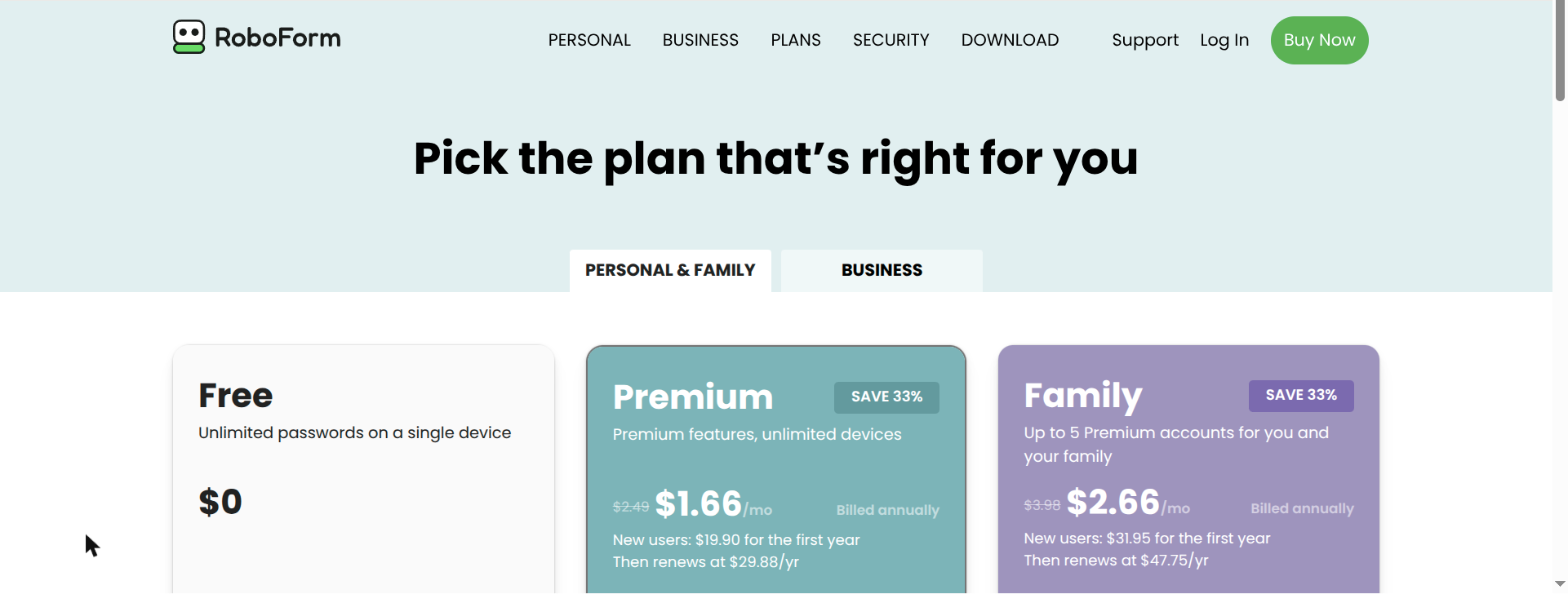
Most password managers, RoboForm included, follow a similar structure: a genuinely usable free tier for single-device basic storage, a paid individual tier adding sync and secure sharing, a family tier, and a business tier with centralized admin controls. Here’s roughly what to expect at each level, using RoboForm’s current tiers as a concrete reference point:
| Tier | Cost | What it actually adds |
|---|---|---|
| Free | Free | Unlimited password storage, autofill, single device |
| Everywhere (Premium) | Low monthly cost | Sync across devices, secure sharing, emergency access |
| Family | Modest step up, per-person discount | Up to 5 individual vaults, shared folders, one billing account |
| Business | Per-user annual pricing | Centralized admin console, provisioning/deprovisioning, activity reporting, policy enforcement |
Map your actual need — one person, a household, or a team — to the right tier rather than defaulting to the most expensive one. The jump from free to the paid individual tier is the one that matters most for most people, since that’s what unlocks cross-device sync; everything past that is about how many people share the account, not how secure it is.
Choosing for a Small Business or Team, Not Just a Household
A family plan and a business plan solve genuinely different problems, even though both involve multiple people sharing an account. A family plan assumes everyone is trusted equally and mostly manages their own vault, with occasional sharing. A business plan assumes the opposite starting point: an admin needs to see who has access to what, revoke access the moment someone leaves, and enforce baseline security policy (minimum password strength, mandatory two-factor, session timeouts) across everyone rather than hoping each person configures it themselves.
The specific features worth checking before committing a small team to a business tier:
- Centralized deprovisioning — when someone leaves, an admin should be able to instantly cut off their access to shared credentials, not rely on that person deleting the app themselves.
- Shared vaults by group or role, not just one flat shared folder everyone can see everything in — a marketing team and a finance team generally shouldn’t share the same credential pool.
- Activity and access reporting, so an admin can actually answer “who accessed this credential and when” if something goes wrong, rather than guessing.
- SSO integration if the business already uses a single sign-on provider — lets the password manager plug into existing identity management instead of becoming a second, separate login system to maintain.
For a very small team (2-4 people), a family plan can sometimes cover the basics adequately and cost less — but the moment turnover becomes a realistic scenario, the lack of centralized deprovisioning on a family plan becomes a real liability, not just a missing convenience feature.
What Doesn’t Matter as Much as You’d Think
Interface polish. It matters for daily enjoyment, but a plainer interface that reliably autofills beats a beautiful one you have to double-check every time.
See current RoboForm plans if you want the specifics on pricing and features.
A detail that matters more than people expect: check how a provider handles account recovery if you lose your master password. A password manager with no recovery option is genuinely more secure in one narrow sense, but it also means permanent lockout if you forget it — know which tradeoff you’re accepting before you commit to one.
Migrating From Browser-Saved Passwords Without Losing Anything
Most people’s actual first password manager is their browser quietly saving logins for years, not a dedicated app. RoboForm and most competitors can import directly from Chrome, Firefox, Safari, and Edge’s saved-password stores, so switching doesn’t mean manually retyping everything. The step people skip, and shouldn’t: after importing, run the built-in check for reused and weak passwords across the whole set — this is usually the first time anyone actually sees how many accounts share the same handful of passwords, and it’s worth fixing the worst offenders first rather than trying to change everything in one sitting.
Emergency Access: The Feature Everyone Skips
A password manager solves reuse but creates a new single point of failure — if something happens to you, nobody else can get into your accounts without your master password. Most reputable managers, RoboForm included, offer an emergency access feature: a designated trusted contact can request access, with a waiting period you control before it’s automatically granted, so you retain the ability to deny an unexpected request while still having a real plan for the worst case. This is worth setting up in the first week, not something to get around to eventually.
Passkeys: Where They Fit Alongside a Password Manager
Passkeys are a newer authentication method that replace a password entirely for supporting sites, using device-based cryptographic keys instead. They’re not a replacement for a password manager overall — most sites don’t support them yet — but a good password manager increasingly stores and syncs passkeys alongside traditional passwords, which matters when choosing one now: pick a manager that already supports passkeys rather than one that will need replacing once they become more common.

Frequently Asked Questions
Is it actually safe to put all my passwords in one place?
Counterintuitively, yes — a single strong, unique master password protecting a vault of unique passwords per site is far safer than reusing a handful of passwords across dozens of accounts, which is what most people do without a manager.
What if the password manager company itself gets hacked?
Reputable providers use zero-knowledge encryption, meaning your actual passwords are never stored in a readable form on their servers — even a full breach wouldn’t expose usable data without your master password, which the company never has.
Browser-built-in password saving versus a dedicated manager — does it matter?
Dedicated managers generally offer stronger encryption, cross-browser and cross-device support, and features like secure sharing and breach monitoring that built-in browser saving typically lacks.
Is the free tier of a password manager ever actually enough?
For a single person on a single device, often yes. The moment you add a second device or want to share credentials with family, the paid tiers earn their cost quickly.
At what team size does a business plan actually become worth it over a family plan?
There’s no fixed number, but the deciding factor is turnover, not headcount — a stable 4-person team might do fine on a family plan for years, while a growing team with regular hiring and departures needs centralized deprovisioning almost immediately, regardless of how small it currently is.